Online payments with Mercado Pago or Stripe
Connect your Mercado Pago or Stripe account and customers pay the deposit and balance by card from their phone.
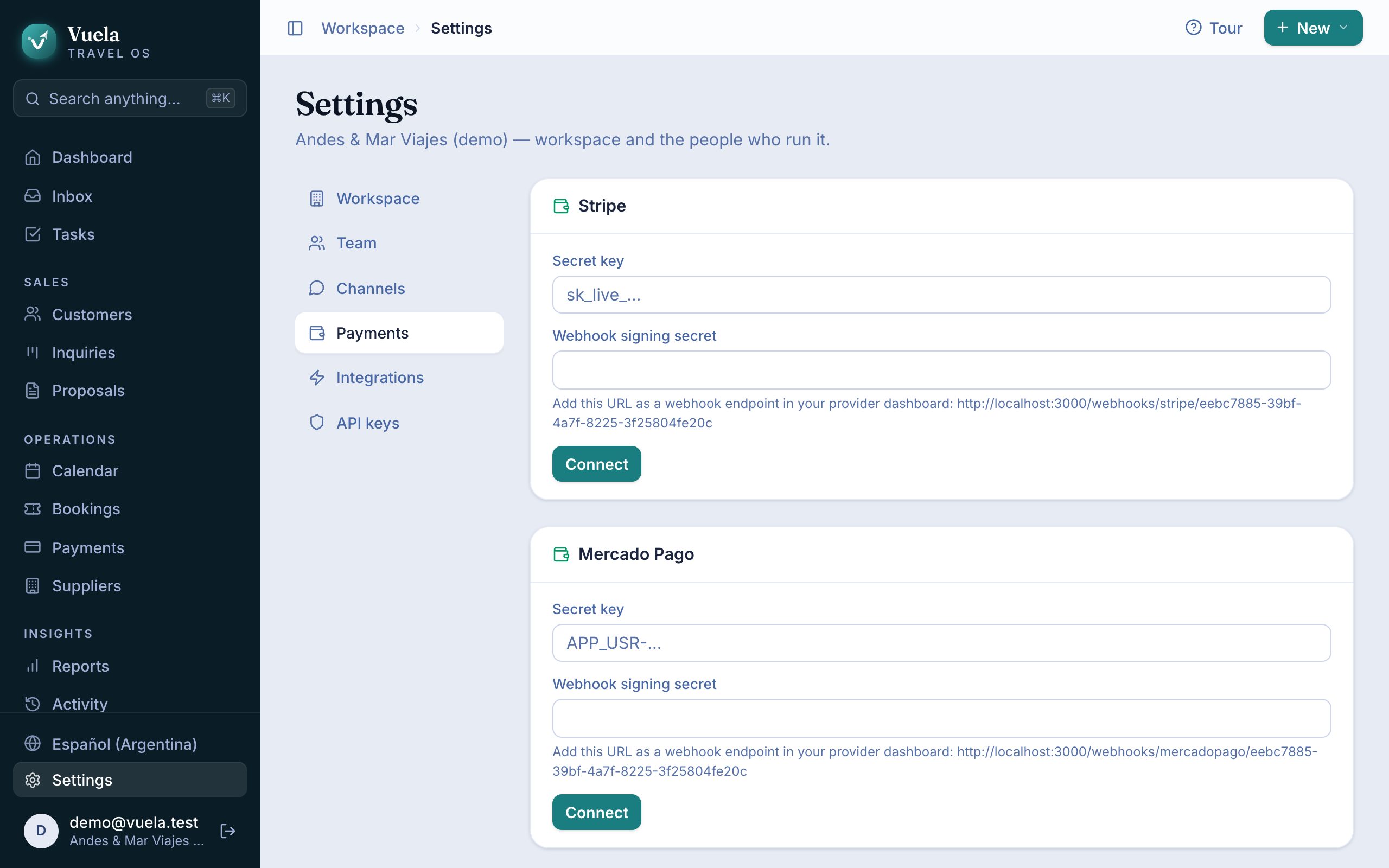
With a payment provider connected, every pay link and every accepted proposal lets the customer pay right away. The money goes straight to your Mercado Pago or Stripe account: Vuela never touches it.
| Provider | Best for |
|---|---|
| Mercado Pago | The usual choice in Argentina: cards, debit and Mercado Pago balance. |
| Stripe | Cards from anywhere in the world. |
You can connect both. Only owners can connect them.
Connect Mercado Pago
- In Vuela, go to Settings → Payments and find Mercado Pago. Copy the webhook URL it shows.
- In Mercado Pago Developers, open Your integrations and pick your app (or create one).
- Copy the Access Token under Production credentials: that’s the Secret key.
- Under Webhooks, add the URL you copied in step 1 and copy the webhook’s secret.
- Back in Vuela, paste the Secret key and the Webhook signing secret, and press Connect.
Connect Stripe
- In Vuela, go to Settings → Payments and find Stripe. Copy the webhook URL.
- In the Stripe Dashboard, open Developers → API keys and reveal the Secret key (it starts with
sk_live_). - Under Developers → Webhooks, add an endpoint with the URL from step 1 and copy its Signing secret (it starts with
whsec_). - Back in Vuela, paste the Secret key and the Webhook signing secret, and press Connect.
What happens next
Once the provider says Connected:
- every invoice’s pay link shows the button to pay by card or with Mercado Pago;
- when accepting a proposal, the customer can pay the deposit right away;
- when the payment is confirmed, Vuela records it, marks the invoice Paid and updates the trip’s balance.
If confirming a payment fails, the provider shows Needs attention with the date of the last attempt. Check the webhook is still set up in your Mercado Pago or Stripe account.
Cash and bank transfers don’t go through here: record them by hand in Payments. See Invoices, deposits and payments.
Also in the first-run setup
The Get paid online step of the setup is this same form. If you skipped it, connect a provider any time from Settings → Payments.
Updated October 24, 2026