AI assistants (Claude, Cursor and others)
Connect an AI assistant to your agency with an API key and ask it, in your own words, to quote, search flights, collect payments or tell you how sales are going.
Vuela speaks MCP, the protocol Claude, Cursor and other assistants use to work with tools. With an API key, your assistant can work in the agency the way you would: “build the García family a proposal for Bariloche in July with the Llao Llao”, “who owes me money?”, “find flights from Ezeiza to Madrid on March 12”.
1. Create an API key
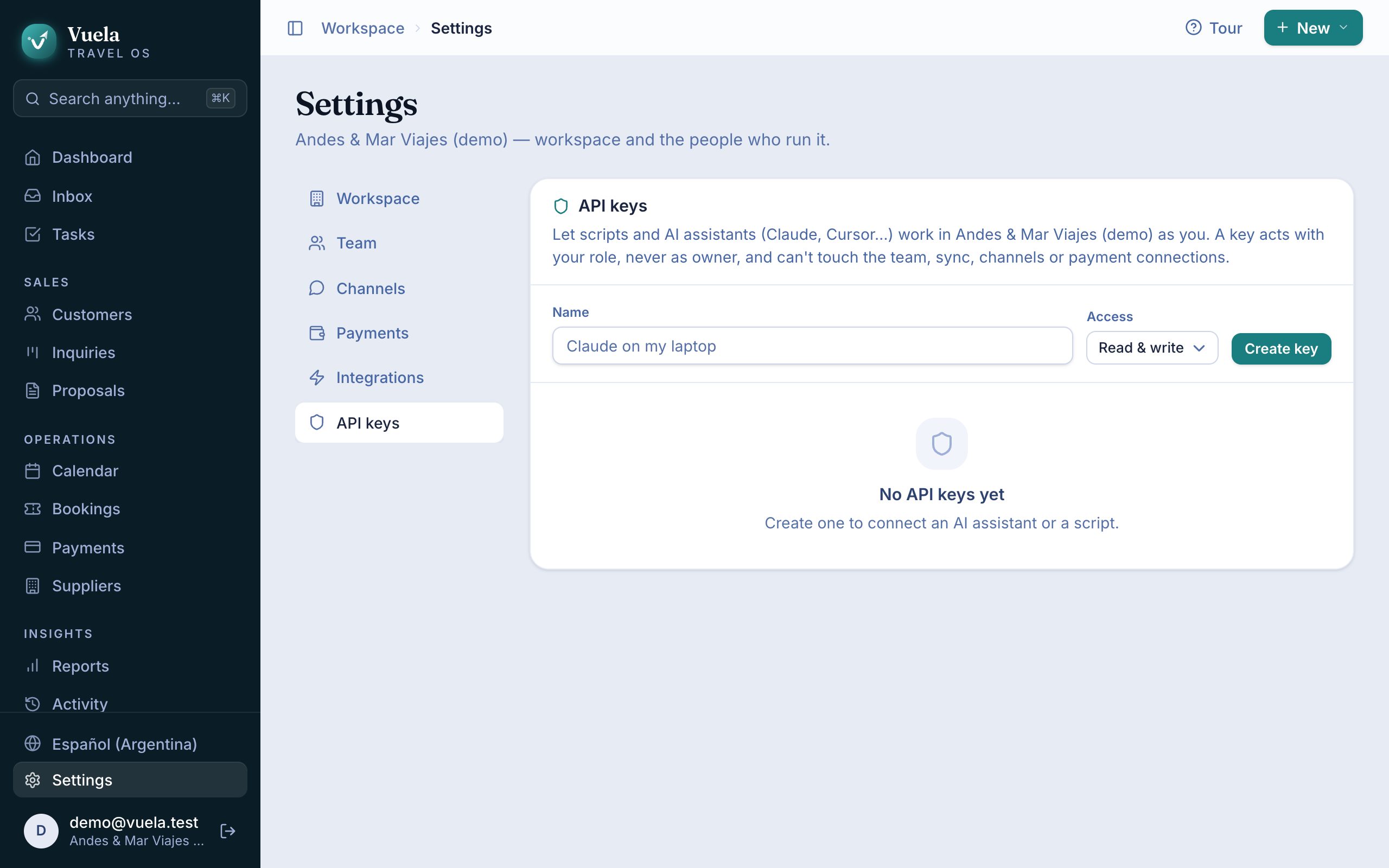
- Go to Settings → API keys.
- Give it a Name that tells you where it’s used: “Claude on my laptop”, for example.
- Choose the Access:
- Read & write: the assistant can look things up and also create and change them.
- Read only: it only looks. It can’t change anything.
- Press Create key and copy it. It starts with
vk_.
The key is shown only once. Keep it like a password. If it leaks, press Revoke and it stops working immediately.
The key works with your role, but never as owner: it can’t touch the team, channels or payment providers. It belongs to one agency: if you work in two, you need two keys.
2. Connect your assistant
Vuela’s MCP server address is:
https://crm.vuela.cloud/mcpIf your agency uses its own domain, it’s your domain followed by /mcp.
Claude Code
In the terminal:
claude mcp add --transport http vuela https://crm.vuela.cloud/mcp --header "Authorization: Bearer vk_…"Cursor
In ~/.cursor/mcp.json:
{
  "mcpServers": {
    "vuela": {
      "url": "https://crm.vuela.cloud/mcp",
      "headers": { "Authorization": "Bearer vk_…" }
    }
  }
}
Claude Desktop
In Settings → Developer → Edit Config, add to claude_desktop_config.json:
{
  "mcpServers": {
    "vuela": {
      "command": "npx",
      "args": ["-y", "mcp-remote", "https://crm.vuela.cloud/mcp", "--header", "Authorization: Bearer vk_…"]
    }
  }
}
and restart Claude Desktop. You need Node.js installed.
Replace vk_… with your key in every case.
3. Ask it things
To start, ask “who am I in Vuela?”. It tells you which agency it’s in, its role, whether it can write and which flight and hotel searches are available.
What it can do:
| To | What it can do |
|---|---|
| Find | Customers, inquiries, suppliers and products from your catalogs. |
| Look up | A customer’s page, an inquiry with its proposals and balance, the agency overview, tasks and the team. |
| Sell | Create customers, travelers and inquiries, build proposals, add and change items, send the proposal and mark it accepted. |
| Flights and hotels | Search Google Flights, Google Hotels or your GDS and add the result to a proposal. Before holding a real reservation at a GDS, it asks you to confirm. |
| Get paid | Issue invoices with their pay link and record payments. |
| Organize | Create, assign and complete tasks. |
| Fix | See recent changes and undo one. |
Amounts always come with their currency, and different currencies are never added together.
What the assistant never does
- It doesn’t message your customers. When it sends a proposal or requests a payment, it gives you the link to send yourself.
- It doesn’t see what your role can’t. If the key belongs to a customer account, it only sees their trips and never your costs.
- It doesn’t reach agency settings or other agencies’ data.
Every change it makes shows in Activity, marked as made with an API key, and you can undo it like any other.
Updated October 24, 2026