Your team and roles
Invite the people who work with you, choose what each of them can do and set up your profile.
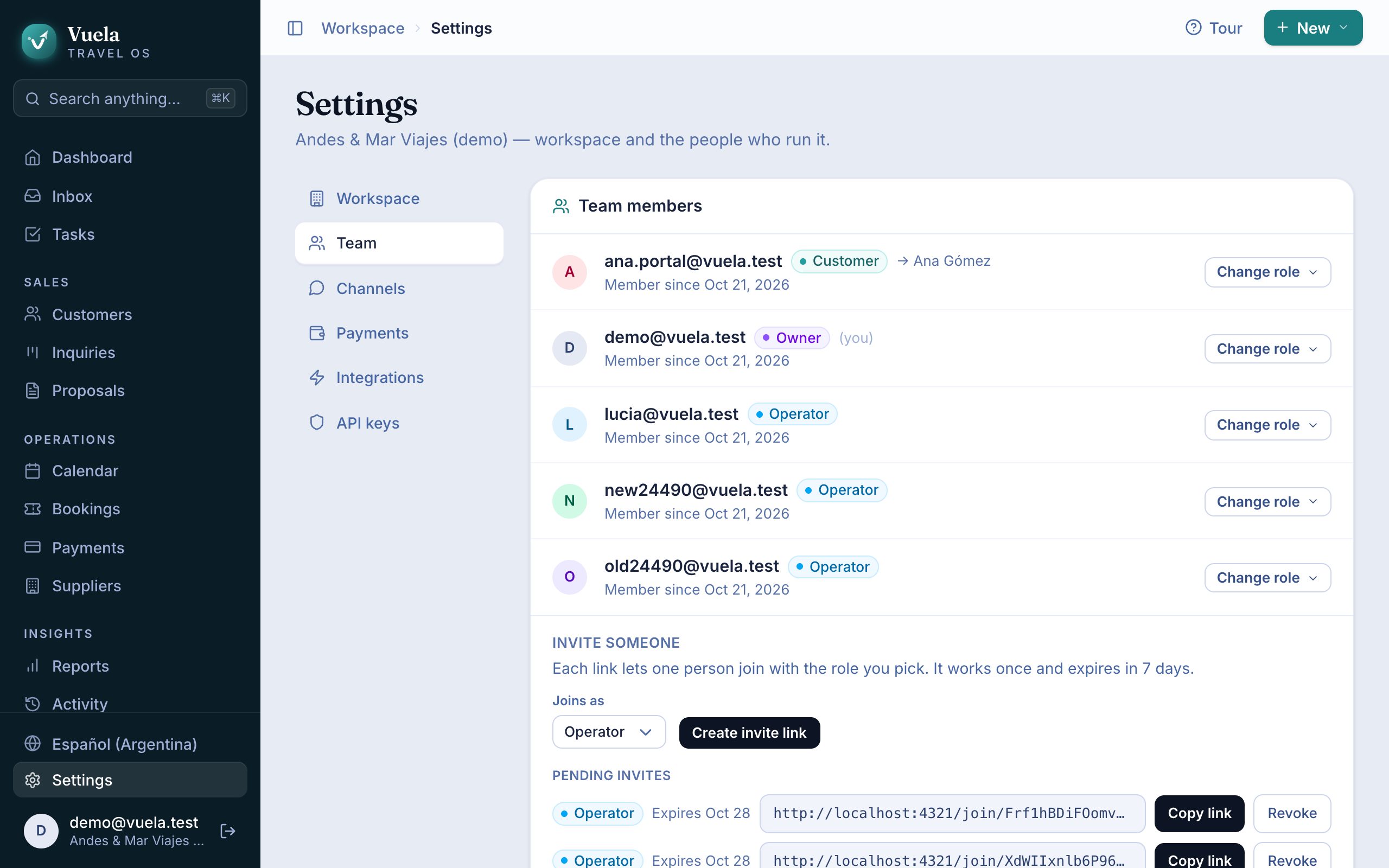
The whole team works on the same customers, inquiries and proposals, and sees each other’s changes instantly, on any device.
The roles
| Role | What they can do |
|---|---|
| Owner | Everything: agency settings, the team, payment providers, integrations and the subscription. |
| Operator | The everyday work: customers, inquiries, proposals, bookings, tasks, messages and payments. They don’t change agency settings. |
| Customer | Sees only their own trips, in the customer portal. See The customer portal. |
An agency always keeps at least one owner.
Invite someone
- Go to Settings → Team.
- Under Invite someone, choose the role they Join as.
- Press Create invite link, then Copy link.
- Send the link however you like: WhatsApp, email or a message.
Each link is for one person, works once and expires in 7 days. Until someone uses it, it’s listed under Pending invites, where you can Revoke it.
Whoever opens the link creates their account (or signs in with the one they have) and joins your agency with the role you picked.
One person can work in several agencies with the same account. Each agency invites them separately.
Change a role or remove someone
In Settings → Team, press Manage next to the person:
- Change role gives them another role. For the customer role, choose which customer they’re linked to.
- Remove from team takes away their access to the agency on every device.
Only owners can change roles and remove people.
Your profile
Press your picture or name at the bottom left to open Your profile. There you set:
- your Picture (cropped to a square),
- your First name and Last name,
- a Bio and your Socials, which your teammates see.
The email you sign in with can’t be changed here.
Under Appearance, pick the Mode (light, dark or your system’s) and the app’s Colour: Lagoon, Ocean, Forest, Orchid or Sunset. It’s saved in that browser, so each person on the team can have their own.
Assign work
Every task can have an Assignee. In Tasks, the Mine filter shows only yours. See Tasks and follow-ups.
Updated October 24, 2026