The inbox and WhatsApp
Connect the agency's WhatsApp (and each salesperson's), reply from Vuela and turn every new message into a customer with an inquiry.
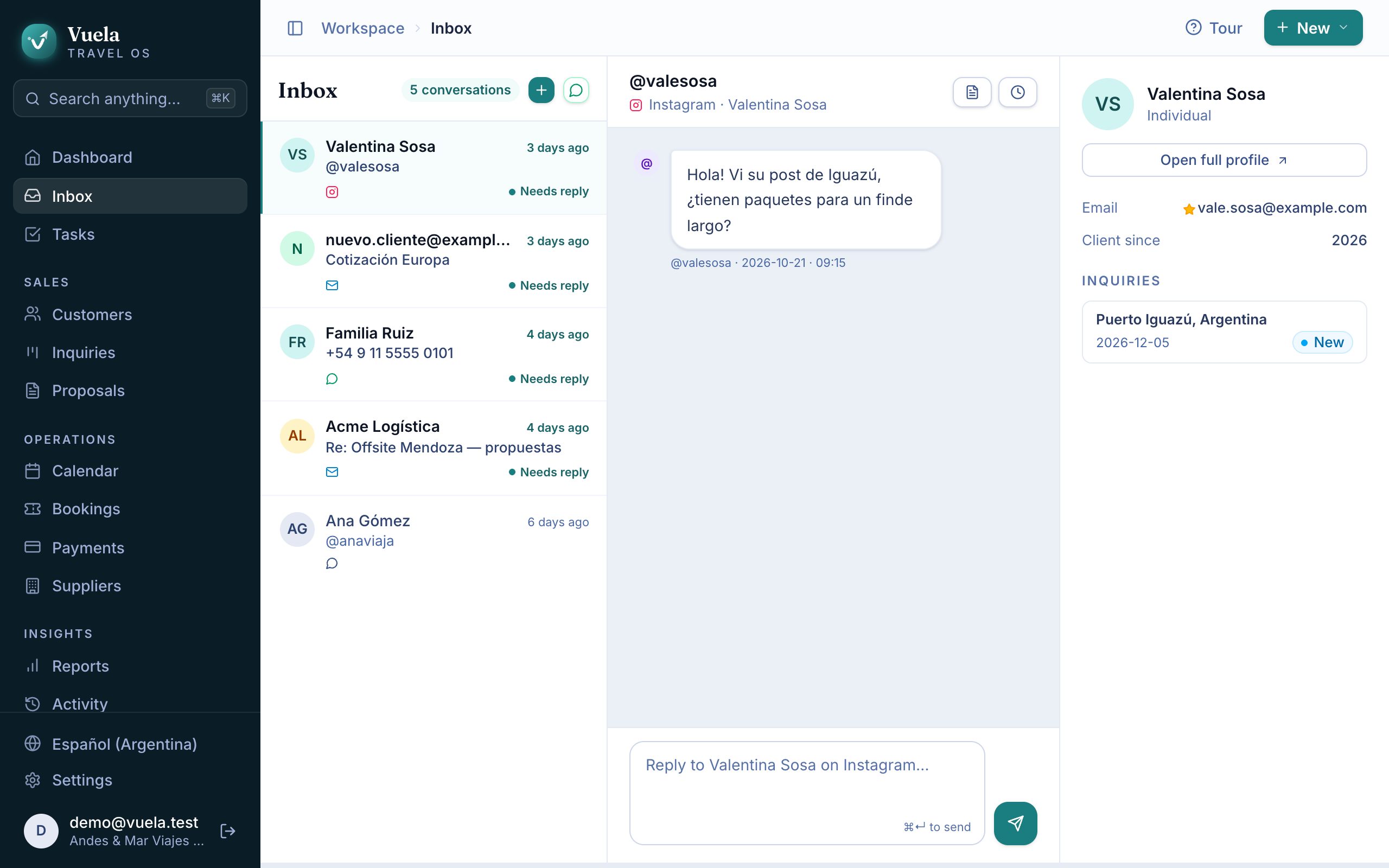
Your customers’ messages land in the Inbox, next to everything you know about them: their inquiries, proposals and trips. You reply without switching tabs.
Connect the agency’s WhatsApp
Vuela connects to WhatsApp Business through Kapso.
- Create your Kapso account and connect the agency’s number there.
- In Vuela, go to Settings → Channels.
- Under Agency WhatsApp number, paste the Kapso API key and, optionally, the Display number.
- Press Connect WhatsApp.
Vuela registers the webhook for incoming messages by itself: there’s nothing to copy. Once you see Webhook registered, messages arrive in the Inbox.
Only owners can connect the agency’s number.
Each salesperson’s WhatsApp
Anyone on the team can connect their own number under Settings → Channels → My WhatsApp number. Conversations that arrive on their number are tagged as theirs, and their replies go out from their number instead of the agency’s.
Reply
- Open a conversation from the list. Those waiting on you say Needs reply.
- Type in the box at the bottom.
- Press ⌘ ↵ (or Ctrl ↵) to send.
On the right you see the customer: how long they’ve been a customer, their inquiries and a link to their full profile.
Quick actions
From the conversation you can Create proposal, Send itinerary, Request payment or Schedule follow-up without leaving the inbox.
When someone new writes
If the number doesn’t belong to any customer, Vuela tells you they aren’t a customer yet:
- Create customer + inquiry creates them and opens an inquiry in one step;
- Link to existing customer… ties the conversation to a customer you already have.
The 24-hour rule
WhatsApp only allows free-form messages within 24 hours of the customer’s last message. To write after that, or to start a new conversation, you need a template approved by Meta.
Add a template
- Get the template approved in Kapso.
- In Settings → Channels → Message templates, press New template.
- Copy exactly the Template name, the Language code (for example
en_US), the Category and the Body text, with its variables{{1}},{{2}}… in the same order. - Choose whether it Sends from the agency’s number or yours, and press Save template.
Use a template
In the Inbox, press Start via WhatsApp template, type the Phone number with the country code, choose the Template, fill in the variables and press Send template. Inside a conversation, use Send a template.
If the WhatsApp number isn’t connected, your reply is logged in Vuela but never reaches the customer. The inbox warns you above the text box.
Updated October 24, 2026