Bookings, the calendar and the customer's trip
Follow every sold trip to departure. Supplier confirmations, a checklist, the calendar and a day-by-day trip page for your travelers.
When the customer accepts a proposal, the sale is done but the work isn’t. Every service needs confirming, documents need collecting, the balance needs paying and the travelers need looking after. That’s what Bookings and Calendar are for.
Bookings
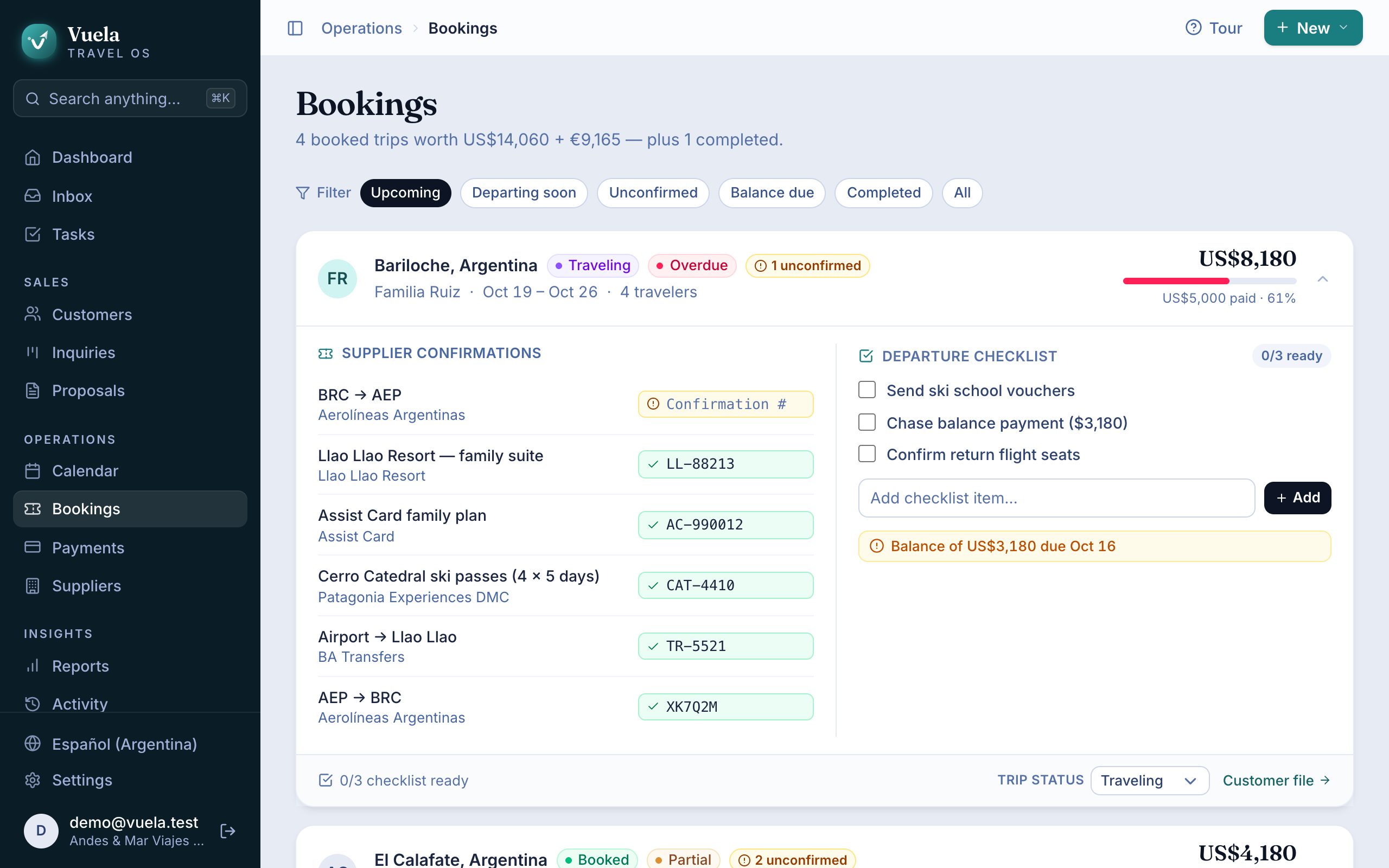
Bookings lists every booked trip, with:
- the travelers, the dates and how many days until departure;
- how much the customer has paid, and what share of the total that is;
- the Supplier confirmations for each service;
- the Departure checklist.
At the top, filter by Upcoming, Unconfirmed, Departing soon, Balance due, Completed or All.
Add the confirmations
Every flight, hotel or tour on the trip has a Confirmation # field. When the supplier confirms, paste the number there. Until they’re all in, the trip shows how many are unconfirmed.
Confirmation numbers also show on the customer’s trip page, so they have them at the airport or the hotel desk.
The departure checklist
Under Departure checklist, type what’s left before they leave (passports, insurance, vouchers) in Add checklist item… and press Add. Each item is a task on the trip: tick it when it’s done. The trip shows how many are ready.
The balance
If the trip has a balance due, Bookings tells you how much and by when. To ask for the deposit, press Request deposit (30%). See Invoices and payments.
Calendar
Calendar lays every trip out on its dates, in Day, Week or Month view.
- At the top you see the period at a glance: trips, travelers, departures, returns, trip value and how much has been collected.
- Press a trip to open its panel: the customer, the travelers, the day-by-day itinerary, what’s confirmed, what’s still owed and the pending tasks.
From the panel, copy a service’s confirmation number, open the proposal or copy the trip link.
Trip statuses
A booked trip moves through Booked, Traveling and Completed. Change it from the inquiry or from Bookings, under Trip status.
The customer’s trip, day by day
Every booked trip has a page for your travelers, with your brand. On a phone it feels like an app:
- a countdown to departure;
- the weather at the destination, as the date gets closer;
- each day of the trip with its flights, hotels, transfers and tours;
- Your bookings: every confirmation number in one place, copied with one tap;
- the balance due, with a button to pay it;
- buttons to call or message you;
- Add to calendar and Print or save PDF.
To send it, press Copy trip link on the proposal or in the calendar panel.
The trip link updates itself. If you change a hotel or add a confirmation, the traveler sees it right away, without you sending anything.
Updated October 24, 2026