Your agency, brand and domain
Add your agency's details, logo and social profiles, and use your own domain on the links your customers open.
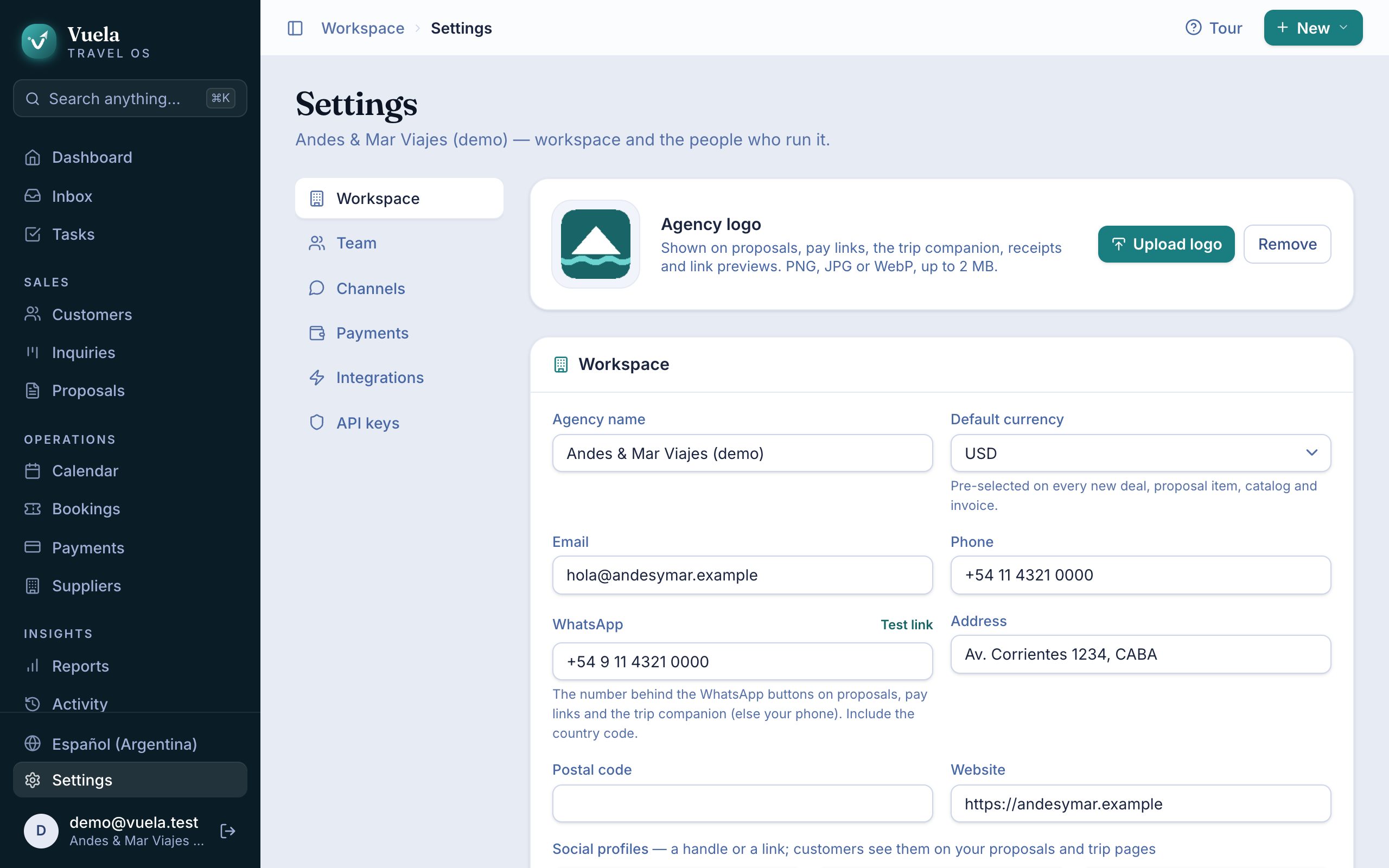
Your customers never see “Vuela”: they see your agency. The proposal, the pay link, the receipt and the trip page carry your name, logo, social profiles and WhatsApp.
All of this lives in Settings → Workspace, and only owners can change it.
Agency details
- Agency name: shown on every page your customers open.
- Default currency: pre-selected on every new inquiry, proposal item, catalog and invoice. Each trip can still have its own currency.
- Email, Phone, Address and Website: the contact details your customers see.
- WhatsApp: the number behind the WhatsApp buttons on proposals, pay links and the trip page. Include the country code and press Test link to check it opens correctly.
Press Save profile when you’re done.
Your logo
Under Agency logo, press Upload logo and pick a PNG, JPG or WebP of up to 2 MB. A square or wide logo on a light background works best.
The logo appears on proposals, pay links, the trip page, receipts and link previews when you share a link on WhatsApp.
Your social profiles
Under Social profiles, add your handle (for example @youragency) or the full link for Instagram, Facebook, TikTok, YouTube, X or LinkedIn. Customers see them on proposals and trip pages.
Your own domain
With your own domain, your team and your customers reach Vuela at your address, for example crm.youragency.com, and every link you send customers uses it.
- In Settings → Workspace, find Custom domain.
- Type the domain under Your domain and press Connect domain.
- Vuela shows you a DNS record (Type, Name and Target). Add it wherever you manage your domain: your registrar or Cloudflare, for example.
- Wait. It’s usually live within minutes, sometimes a few hours. The security certificate is issued automatically.
When the status changes to Live, sign-ins and customer links use your address. To check sooner, press Check again.
If you remove the domain, links that used it stop working. Your customers will need the new links.
How the app looks
Light or dark mode and the app’s colour are each person’s choice, not the agency’s. Change them in Your profile → Appearance. See Your team and roles.
Updated October 24, 2026