Reports and activity
See what you sold, what you earned and what needs attention. And if someone changed something by mistake, undo it.
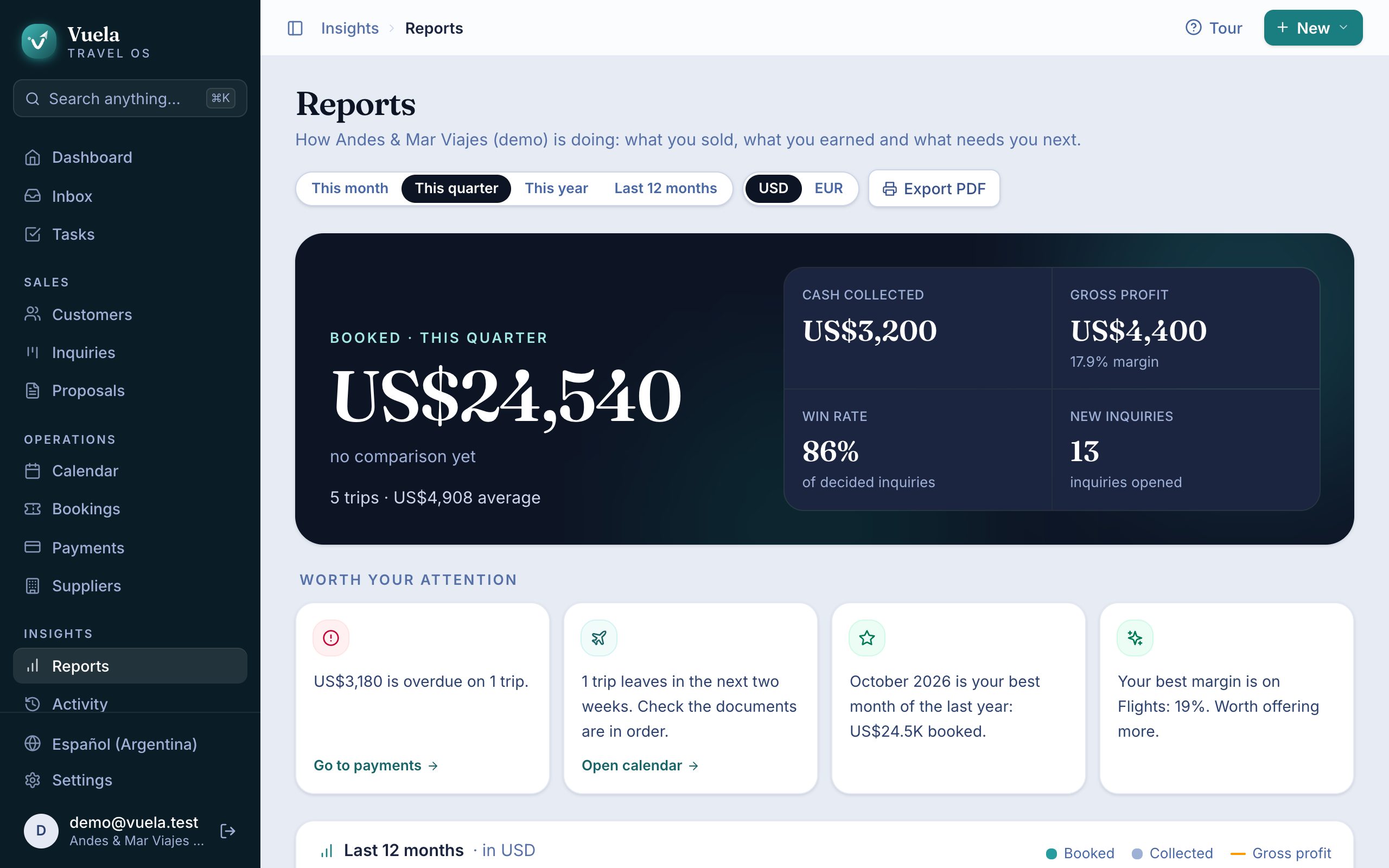
Reports
Reports tells you how the agency is doing on one screen. At the top, choose the Period (This month, This quarter, This year or Last 12 months) and the Currency.
The headline numbers
- Booked: what you sold in the period, across how many trips, and the average per trip.
- Cash collected: the money that came in.
- Gross profit: what you keep after paying suppliers, with your margin.
- Win rate: of the inquiries that were decided, how many bought.
- New inquiries: how many came in.
Each number is compared with the same point in the previous period, so you can see whether you’re doing better or worse.
Profit and margin come from the cost you enter on each item. Without costs, Vuela can’t work them out.
Worth your attention
Vuela reads your numbers and flags what matters in short sentences: whether bookings are up or down, your best month, which kind of product earns you the most, which proposals expire this week, how much is overdue and which trips leave in the next two weeks. Each one has a button that takes you to deal with it.
The rest of the report
- Last 12 months: booked, collected and profit, month by month.
- Pipeline: what’s in open inquiries, and which proposals are waiting for an answer or about to expire.
- To collect: what you’re owed, trip by trip.
- Next departures: trips in the next 60 days and how much each has paid.
- Margin by product: what you sell and what you earn on flights, hotels, tours and the rest.
- Top destinations, Best customers and Top suppliers.
Press Export PDF to save or share it.
Vuela never converts currencies. If you sell in pesos and dollars, each currency has its own report: switch it under Currency.
Activity
Activity is the record of everything that changed in the agency: who did it, when, and what it was before and after.
- Changes are grouped by day, in sentences like “Ana updated the proposal Option A”.
- For data changes, you see the old value struck through and the new one beside it.
- Filter by Period, Person or Record type.
- Press History on a change to see everything that happened to that record.
Undo a mistake
If someone changed or deleted something by mistake, find the change in Activity and press Undo. The record goes back to how it was. Changed your mind? Redo applies it again.
Only a record’s latest change can be undone. If other changes came after it, undo the newer ones first.
Each proposal also has its own History, with every change to its items, invoices and payments. See Build a proposal.
Updated October 24, 2026