Customers and travelers
Add individuals, families, groups or companies, with their travelers, passports, visas, documents and billing details.
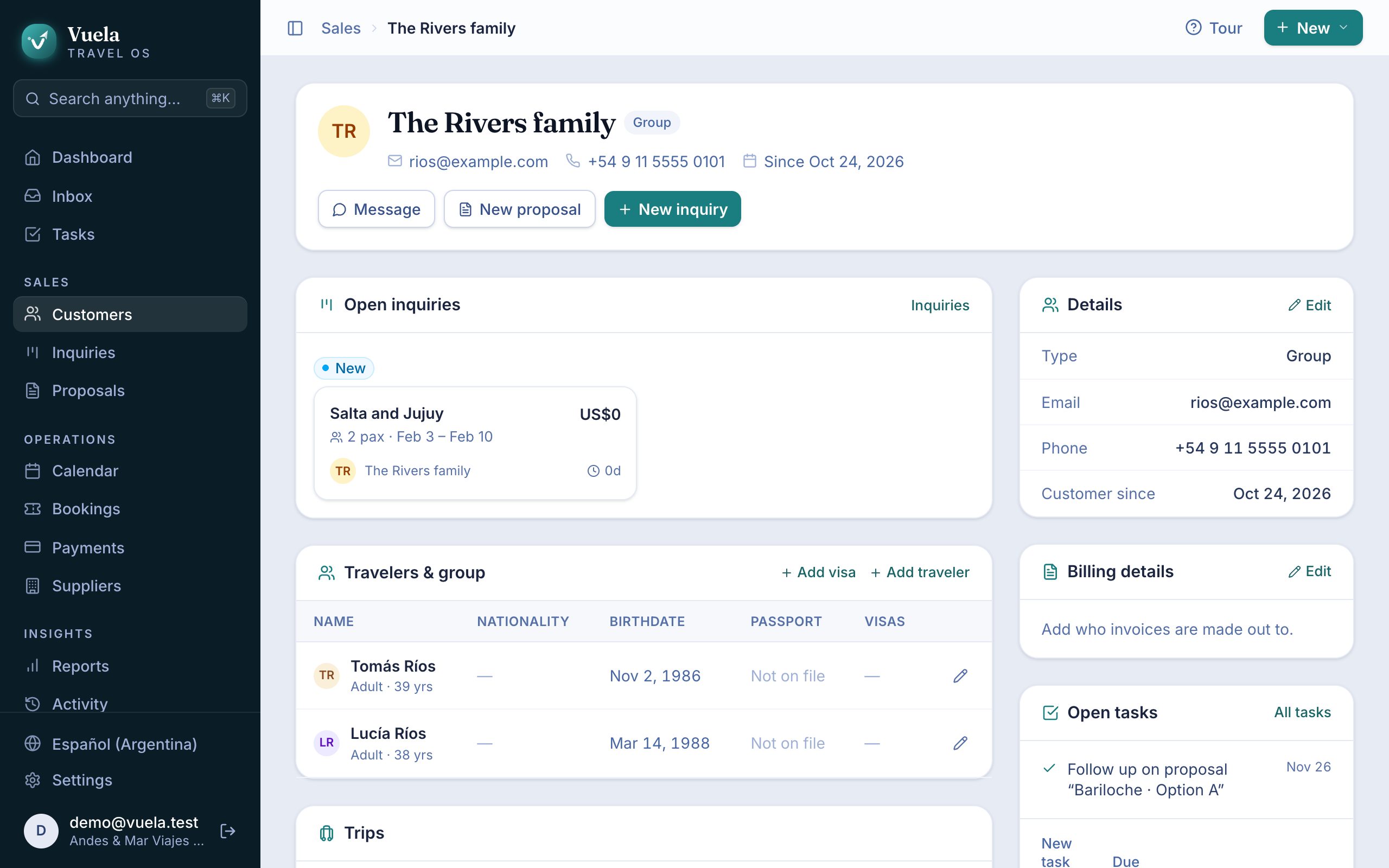
A customer is whoever buys the trip: a person, a family, a group or a company. Travelers are the people who fly. One customer can have many travelers: a family of four is one customer with four travelers.
Create a customer
- Go to Customers and press New customer.
- Choose the Type: individual, group or company.
- Type the Name and, if you like, some Notes.
- Press Create customer.
You can also create one from any screen with the New button at the top, or from search (⌘ K). And when someone new messages you on WhatsApp, you create them right from the conversation: see The inbox and WhatsApp.
The customer’s page
Open a customer to see everything about them on one screen:
- Open inquiries and Proposals: what they’re shopping for now.
- Trips: everything they’ve done with the agency.
- Travelers & group: who travels.
- Documents: passports, visas and contracts.
- Open tasks, Payments and Conversations.
- Notes: one shared note only the team sees.
From the page, start a New inquiry or a New proposal without looking the customer up again.
Travelers
Under Travelers & group, press Add traveler and fill in:
- First name and Last name, as on the passport.
- Birthdate: Vuela uses it to tell whether they fly as an adult, child or infant.
- Gender, Nationality, Passport number and Passport expiry.
To book flights through Amadeus, Sabre or Duffel, every traveler needs a birthdate. Duffel also needs their gender, plus an email and a phone for the customer.
Visas
Press Add visa on a traveler and fill in the Country, the Type (tourist, business, transit, student, work or other), the Entries, and when it was issued and expires. You can attach a Visa scan.
The travelers table flags a visa that has expired.
Documents
Under Documents, press Upload to attach passports, contracts or any of the customer’s files. They stay on the customer’s page for the whole team.
Billing details
Under Billing details, press Edit and fill in who invoices are made out to: Legal name, Tax ID, Tax status, Billing email and the address.
Search and sort
In Customers, search finds people by name, email or phone. Sort lists them by name, by age, by Highest lifetime value, by Most trips or by Recently active.
Delete a customer
From the row’s ⋯ menu, Delete customer also deletes their inquiries, proposals, travelers, visas, documents and tasks. Their messages stay in the inbox.
A customer with recorded payments or portal access can’t be deleted.
Updated October 24, 2026